Welcome to IAVHUBCreate careers and streams of income for yourself, your members and, your visitors
.
Create careers and streams of income for yourself, your members and, your visitors
.| File Name | Description | URL | Price | |
|---|---|---|---|---|
 |
||||
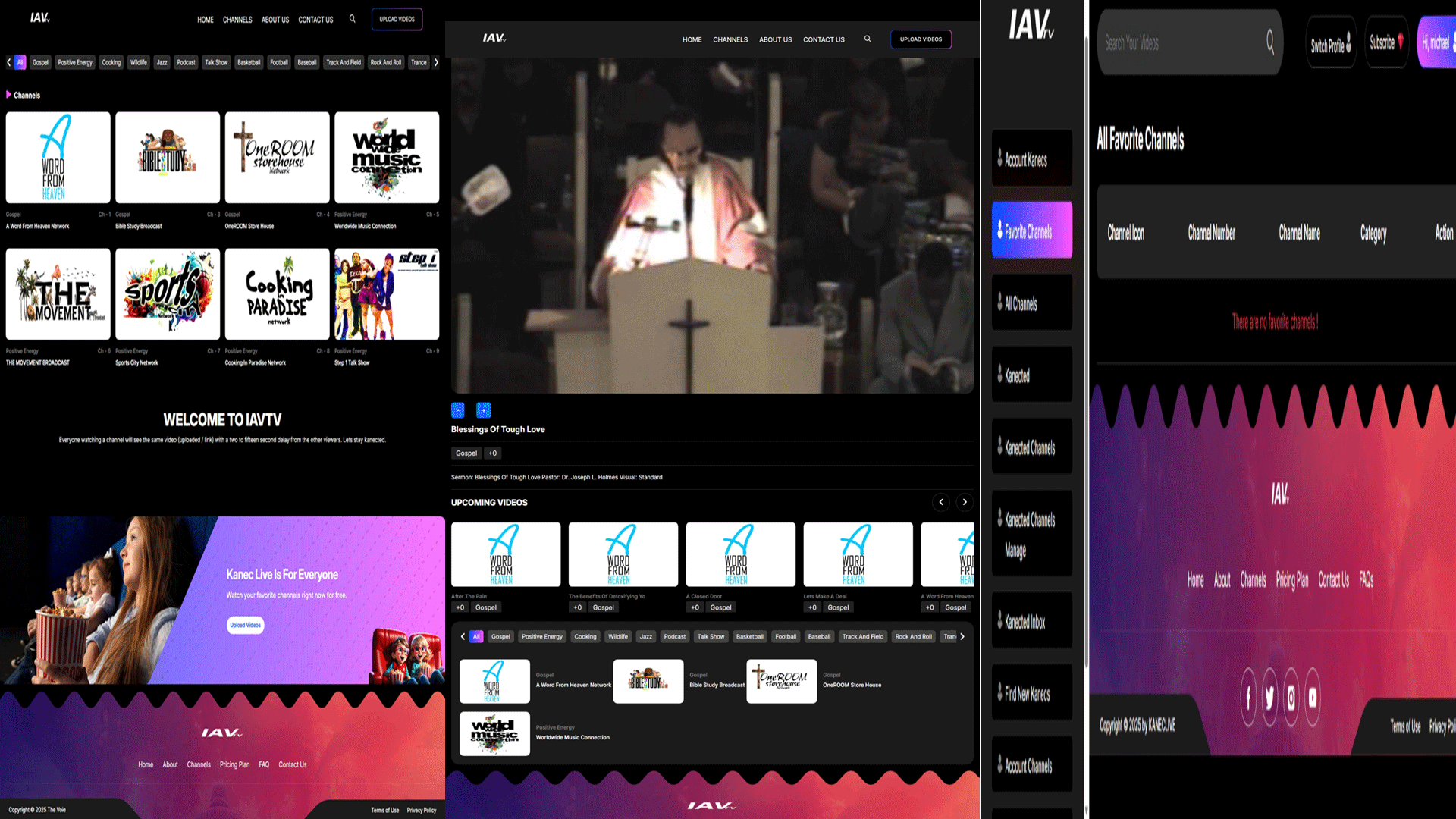
| iavtv space | After purchasing the software there are two options. The first options is you can contact a member of The Tieam at (626) 373-4331 and your site will be live within seven two hours. When we speak with you we are going to ask if you have purchased a domain name, and website hosting. If you have not you can go to Godaddy.com or namecheap.com. The Tieam is able to get your domain name and hosting if you will like. The second option is you can upload the files to the internet, the process is easy. Step 1 Create a folder on your computer for the downloaded software file folder. Step 1 Download winscp at https://winscp.net/eng/downoad.php (when you are on the site scroll down until you see the green download button). This is the free file transfer program (ftp) that The Tieam uses. Step 2 Download brackets at https://brackets.en.softonic.com/. This is the free editor program that The Tieam uses. Step 3 Some functions on the site can be done while on the site and others functions are only accesible though the cpanel portion of the site which can be accessed by typing your domain name/admin. You need to purchase a the CPanel at cpanel.net. Step 4 Open winscp click on new site Step 5 On the first drop down choose SFTP (secure file Transfer program) Step 5 Insert your hostname. Go to the website that you used to purchase the domain name and hosting. Go to the hosting section for the domain name and click on the manage button. Step 6 Go to your Cpanel admin section at the site you purchased the domain name from to get the username that you will place in the username section on you WinSCp program. Step 7 Stay in your Cpanel admin section and copy the password. PAste the password on your WinSCP program. Step 8 Click Save Step 9 click login Step 8 Open the folder on your computer that has the software files. Step 9 Right click on .env (open the file using brackets) Step 10 Change line 47 to the domain name you created Step 11 Click on the app folder at the top. Step 12 Click on the Config folder at the top Step 13 Right click on the "app" file and open the file using brackets. Step 14 In the brackets program go to line 19 and insert your domain name. Step 15 In the software file folder right click on constants. Step 16 Go to line 87 and insert your domain name Step 17 Go to your Cpanel account Step 18 Scroll down to Databases Step 19 Click create a database Step 20 Create a name for your database (the name will show up in the check data box and the repair database box). Step 21 Create a username (this is the username you will use to open the cpanel for your site). Step 22 Create a password (this will be the password you use to open the cpanel for your site). Step 23 Scroll down and click add user Step 24 Select all privlages then scroll down and click make all changes Step 25 click on the phpmyadmin tab in the database section Step 26 Click on your database name on the left hand side of the screen Step 27 The screen to the right should become empty Step 28 Click the tab import Step 29 Click where is shows choose file and select the database file. Step 30 Click save Step 31 Go to you winscp program Step 32 open the site folder Step 33 Delete the files well known and cgi bin Step 34 Highlight every other folder and file Step 35 Drag those files to the right side of the screen that is your new domain site (the transfer will take approximately three hours. When the transfer is complete your site will be live. |
admin user: thevoie@iavplayer.com pass: 123456 user: mh070582@yahoo.com pass: 123456 |
$300.00 | Purchase |
| iavradio space | iavradio space |
admin user: mh070582@yahoo.com pass: 123456 https://iavradio.space |
$300.00 | Purchase |
| iavdisplay space | iavdisplay space |
admin user: mh070582@yahoo.com pass: 123456 https://iavdisplay.space/ |
$300.00 | Purchase |
 |
||||
| test | test |
test |
$100.00 | Purchase |